PEQ
Parametric EQ, or PEQ, lets you boost or cut specific frequencies. Each band you add targets a center frequency, a gain, and a width — called Q — around that frequency. Up to 16 bands are available per channel.
The PEQ filters use biquad equations based on Robert Bristow-Johnson’s Audio EQ Cookbook.
Note
For shelving filters, the HTP-1 uses Q to control the filter shape. This differs from the shelf-slope parameter S used by some other equalizers, so identical numerical settings may produce different curves.
PEQ settings are global
PEQ settings are global and affect all calibration slots. Any adjustment you make to the PEQ while one slot is selected automatically applies to every other slot as well. Unlike user delay and user trim, PEQ is not stored per slot.
Turning PEQ On and Off
The PEQ page heading shows Parametric Equalization on or off, along with the current placement — for example "PEQ pre". Use the button to turn PEQ on or off.
When PEQ is off, an alert reminds you that band settings can still be changed, but they will have no effect until PEQ is turned on.
With PEQ placed Pre, filter editing remains available even when BC or ART calibrations are stored. With PEQ placed Post, storing any BC or ART calibration locks PEQ editing. See PEQ Placement.
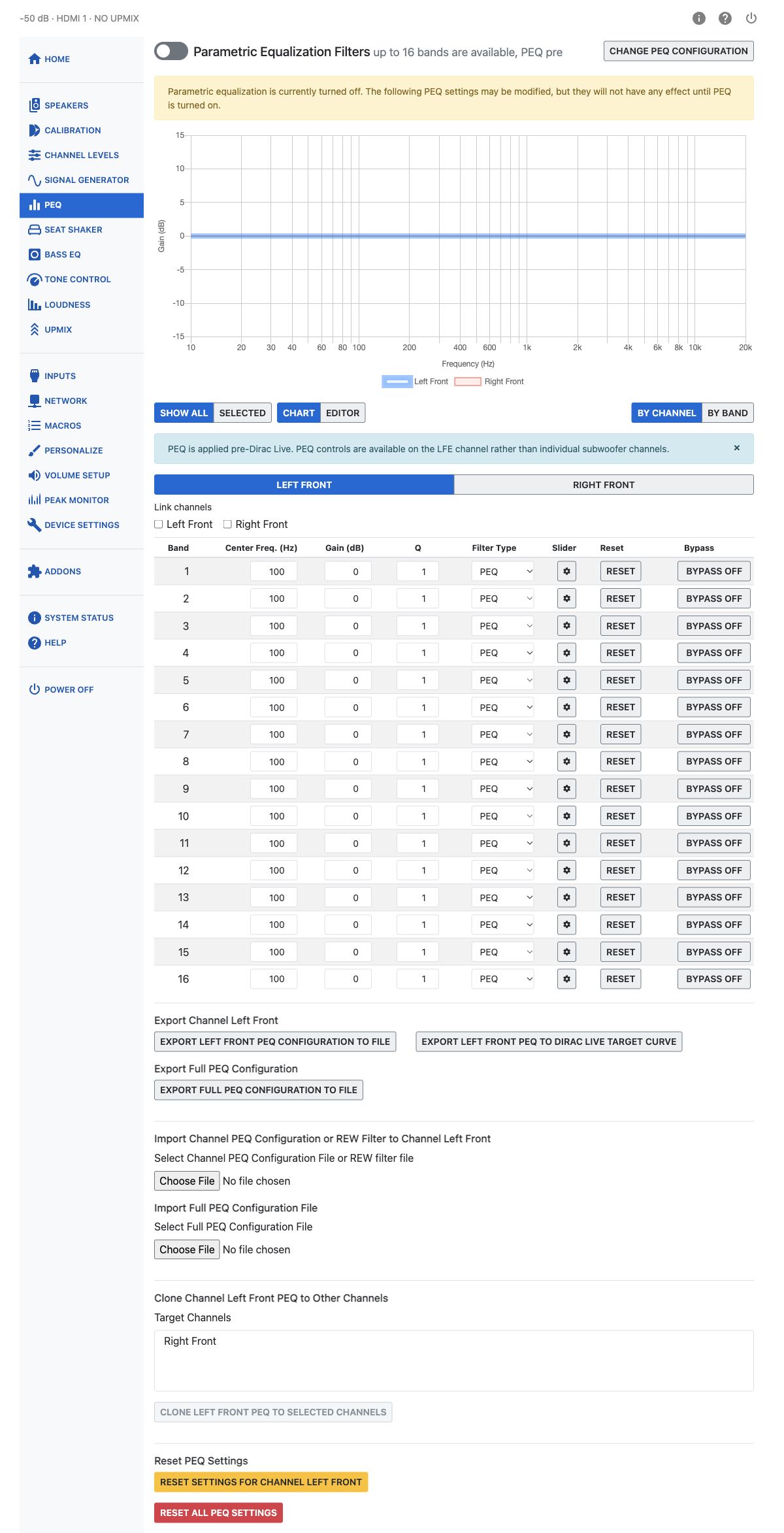
Chart and Editor
The PEQ page shows a response chart for the bands you have set. Two buttons above the chart switch between views:
- Chart — a read-only plot of the combined response.
- Editor — an interactive chart where you can drag a band's marker to change its frequency and gain, and drag its edges to change Q. The Editor is available when grouping By Channel on wider screens. Phone layouts keep the chart and the numeric fields and sliders.
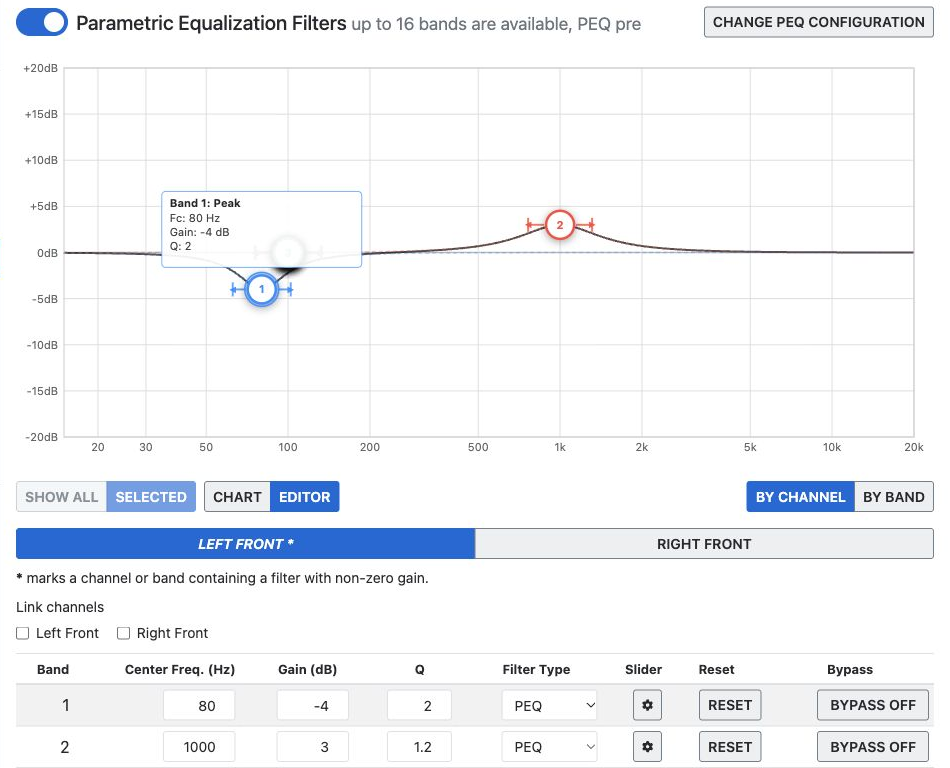
PEQ Editor with two example filters. Drag a numbered marker to change frequency and gain, or its side handles to adjust Q. Values are illustrative, not recommended settings.
Two more buttons control what the chart displays:
- Show All / Selected — plot every channel at once, or only the channel you have selected.
Grouping: By Channel or By Band
A second pair of buttons controls how the band table below the chart is organized:
- By Channel — pick a channel, then adjust all of its bands in one table.
- By Band — pick a band number, then adjust that band across every channel in one table.
Per-Band Controls
Each band has the following controls:
| Control | Range | Notes |
|---|---|---|
| Center Frequency | 15–20000 Hz | New edits use whole-Hz steps. |
| Gain | −63 to 20 dB | New edits use 0.5 dB steps. A gain of 0 dB is equivalent to bypassing the filter. |
| Q | 0.1–10 | Hidden for filter types that don't use Q. |
| Filter Type | PEQ, Low Shelf, High Shelf, All Pass 1st Order, All Pass 2nd Order, LPF, HPF | Available fields depend on type. |
| Bypass | on/off | Turns the individual band off without losing its settings. |
| Reset | — | Resets that one band back to a flat, unmodified state. |
Available frequency, gain and Q fields depend on the selected type. Frequency sets the center or corner, gain the boost or cut, and Q the bandwidth or response shape.
An inline slider panel (the gear icon on each row) gives you frequency, gain and Q sliders with step buttons, if you prefer dragging to typing numbers.
Channels or bands with active, non-zero settings are marked with an asterisk.
Warning
Applying large EQ boosts can cause digital clipping. Check the Peak Monitor after adding significant gain.
Channel Groups and Linking
You can link channels so that editing one band updates the same band on every linked channel. Check the link box next to a channel's name (in By Channel view) to add it to the link group; editing that channel's bands then also edits every other linked channel. Use Unlink all to clear every channel link.
Import and Export
The PEQ page offers several import and export operations, at different scopes:
- Export Band {n} PEQ Configuration to File — every channel's setting for one band.
- Export Channel {name} PEQ Configuration to File — every band for one channel.
- Export Full PEQ Configuration to File — the entire 16-band, all-channel configuration.
- Import Band PEQ Configuration to Band {n}
- Import Channel PEQ Configuration or REW Filter to Channel {name} (or to all linked channels, if any are linked) — this accepts both the HTP-1's own channel export format and a filter file exported from Room EQ Wizard (REW).
- Import Full PEQ Configuration File
The selected channel can also be exported as a Dirac Live target curve. This produces a target-curve file for the Dirac Live app; it does not export a Dirac Live calibration.
Tip
Importing a REW filter file is a fast way to bring in PEQ bands you designed in REW.
New edits and REW imports round frequency to the nearest whole Hz and gain to the nearest 0.5 dB step within the controls' limits. Saved JSON configurations retain their original values; import notices explain when the processor uses a different value.
The curves use the processor's representation: frequency rounded to whole Hz, gain limited to ±63 dB and truncated toward zero to 0.5 dB steps, and Q truncated to 1/256 steps. A preserved decimal frequency is shown at its whole-Hz value; the field tooltip identifies the saved value.
Cloning a Channel's PEQ
Clone Channel {name} PEQ to Other Channels copies the selected channel's entire PEQ setup onto one or more channels you pick from a target list. This is useful when several speakers need the same correction.
Reset PEQ Settings
You can reset PEQ at three scopes: the current band across all channels, the current channel across all its bands, or every band on every channel (Reset All PEQ Settings, which asks for confirmation).
PEQ Placement
PEQ can be placed either before (pre) or after (post) the Dirac Live filter block. Pre is the default.
During a Dirac Live calibration, the measurement signal is injected at the Dirac Live filter stage. As a result, Pre PEQ does not affect the calibration, while Post PEQ is included in the measured response.
Two things drive this choice:
- Correcting the input signal — restoring bass that was filtered out during mastering, or compensating for a listener's hearing. This requires PEQ pre, so the correction is applied to the source signal before bass management and Dirac Live process it.
- Correcting speakers or the room — use PEQ post, so the correction is applied to the final signal sent to each speaker. This also allows the correction to be included in a subsequent Dirac Live calibration.
Open the Advanced PEQ Options dialog to change placement. On the PEQ page, the Change PEQ Configuration button at the top is always visible. On the Calibration page, the same control lives under an Advanced PEQ Options heading, but only when Show Advanced Settings is turned on.

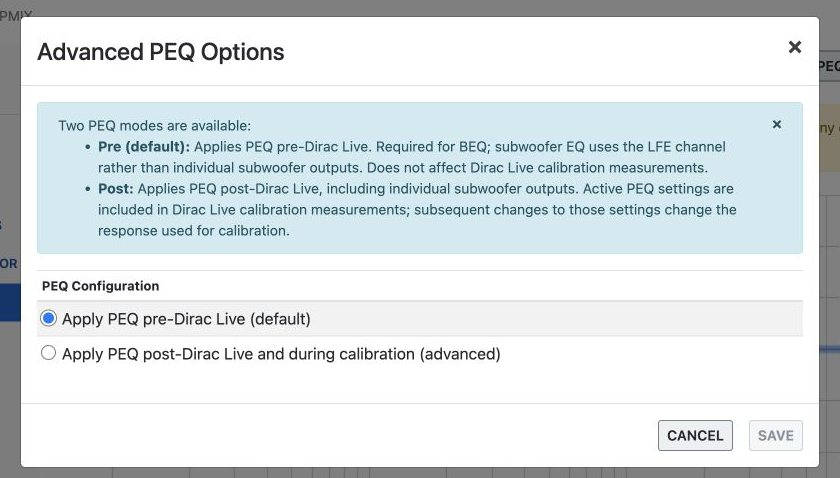
The dialog stages your choice locally — nothing is applied until you click Save. A banner reads "You have unsaved changes. Click Save to apply them." until you do.
- Apply PEQ pre-Dirac Live (default). Use this for source-signal correction, such as Bass EQ (BEQ) or hearing compensation. Because Pre PEQ operates before bass management, it processes the LFE signal rather than the individual subwoofer outputs.
- Apply PEQ post-Dirac Live and during calibration (advanced). Use this for speaker or room correction before running Dirac Live. Because Post PEQ is included in the Dirac Live measurements, it can be used to deliberately pre-compensate the speakers before calibration.
Warning
PEQ is never automatically disabled during a Dirac Live calibration. Post PEQ is included in the calibration, while Pre PEQ is bypassed by the measurement signal. If you want a calibration with no PEQ influence, either turn PEQ off or use Pre placement.
Two separate locks can appear here, and they are not the same thing: one prevents editing the PEQ filters themselves, while the other prevents changing between Pre and Post placement.
The locks depend on PEQ placement and whether any slot contains a BC or ART calibration:
| PEQ placement | BC or ART calibration stored | Edit PEQ filters | Change placement |
|---|---|---|---|
| Pre | No | Available | Available |
| Pre | Yes | Available | Locked |
| Post | No | Available | Available |
| Post | Yes | Locked | Locked |
These restrictions consider all stored slots, not only the selected slot. Remove all BC and ART calibrations to unlock placement changes or locked Post PEQ editing.
Reloading BC/ART filters
PEQ placement (Pre or Post) is a global setting and is not stored with a Dirac Live filter.
If you delete a BC or ART filter, change the PEQ placement or modify any active Post PEQ filters, and then reload the original filter, the signal path may no longer match the one used during calibration. In that case, the calibration may not perform as intended.
If you plan to reload a BC or ART filter, restore the original PEQ placement and Post PEQ settings before loading it.
Room Correction Methods and PEQ
- Manual calibration — mainly used to tame room resonances with a single subwoofer, though tools like REW can compute more advanced multi-sub or multi-speaker solutions using PEQ, trim and delay together.
- Dirac Live Room Correction (RC) — corrects frequency and phase per speaker and subwoofer individually. Post PEQ can be used to pre-compensate the speakers before calibration; subwoofer delay is often fine-tuned after.
- Dirac Live Bass Management (BM) — similar to RC, using Dirac Live's own bass management. Post PEQ can be used to pre-compensate the speakers before calibration.
- Dirac Live Bass Control (BC) — adds smoothing across multiple subwoofers and flattens the sub/speaker crossover region. Post PEQ can be used to pre-compensate the speakers before calibration.
- Dirac Live Active Room Treatment (ART) — all speakers work together for the smoothest response across the listening area. Post PEQ can be used to pre-compensate the speakers before calibration.