Calibration
The Calibration page holds your Dirac Live filter slots and the per-speaker delay and trim values that ride on top of them. For setting output levels and the Reference Output Voltage, see Volume Setup. For lip-sync delay, see Inputs — it is set per input, not on this page.
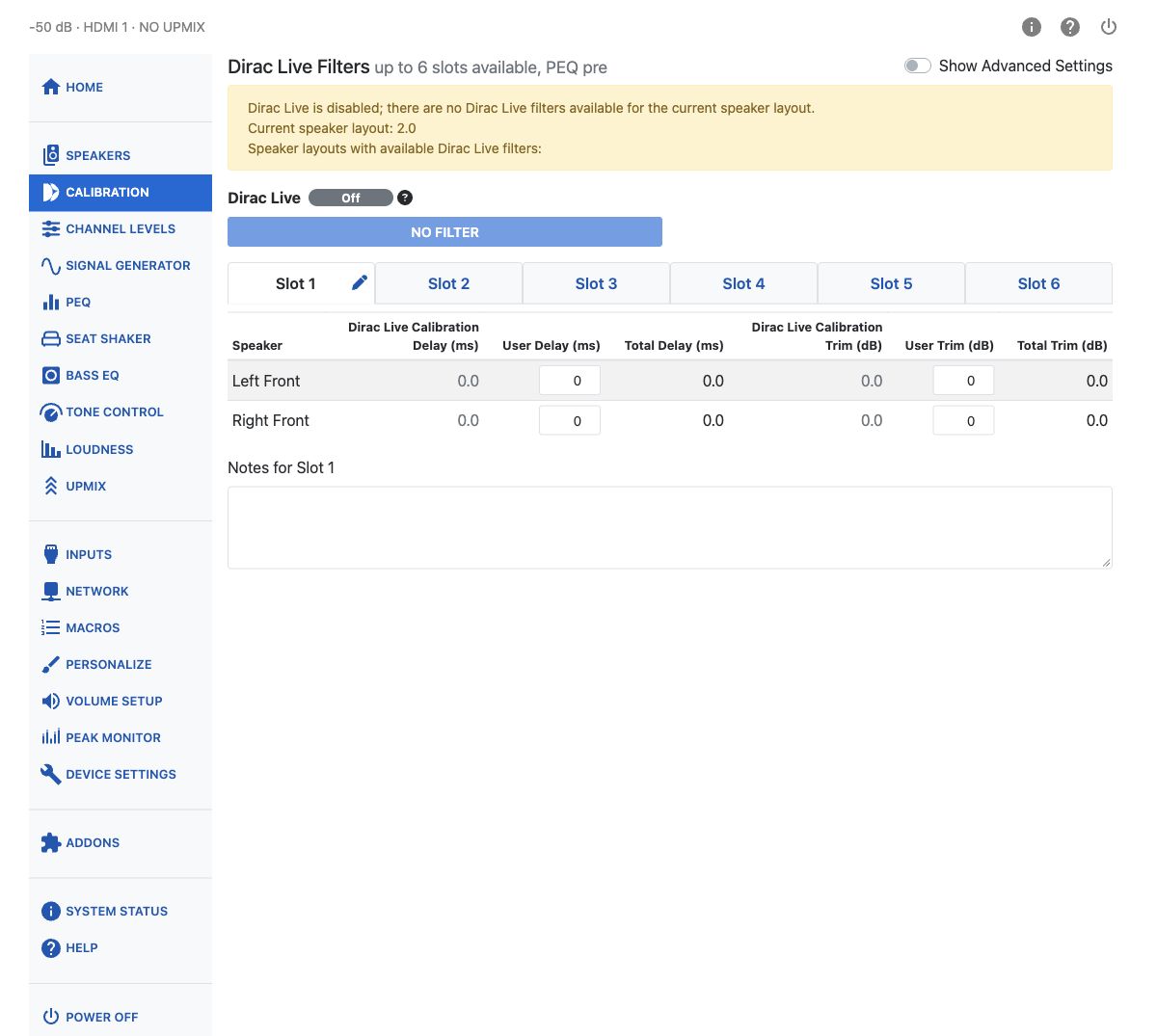
Dirac Live Filter Slots
Up to six filter slots are available. Each slot can hold a Dirac Live calibration and its own user delay and trim settings. PEQ settings are global and shared by all slots. Click a tab to select a slot. A slot without a calibration can still be used for manual delay and trim adjustments. Selecting a slot without a calibration switches Dirac Live off while global PEQ and the slot's user delay and trim settings remain available.
Naming a Slot
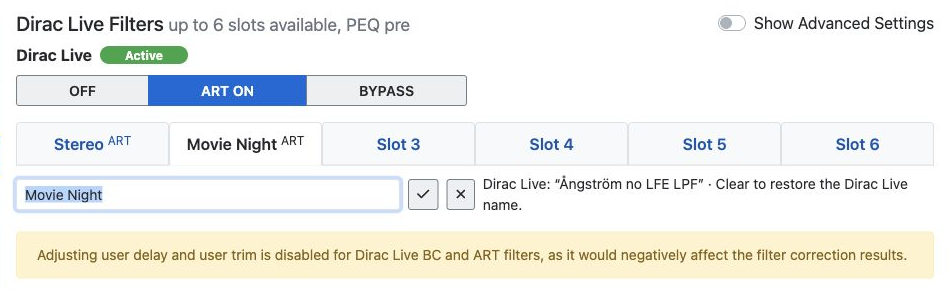
You can give any filter slot a custom name, whether it contains a Dirac Live calibration or not. Select the slot, click the pencil (Rename) control, enter a name, and save it.
A custom name replaces the displayed slot name but does not change the calibration name stored by Dirac Live. The original Dirac Live name remains available as additional information. Clearing the custom name restores the Dirac Live name, or the default name Slot N if no calibration name exists.
Renaming is temporarily unavailable while Dirac Live is loading or switching filters.
Notes
Each slot has a Notes field below the table. Use it to record anything about that calibration — which microphone positions you used, which speaker layout it covers, or why you made it. Notes are saved with the slot and are visible only in the HTP-1 UI.
Filter Types
A slot's calibration can be one of four types. The type appears as a small superscript badge after the slot name:
| Badge | Filter Type | What it means |
|---|---|---|
| RC | Dirac Live Room Correction | Standard room correction, each speaker treated individually. |
| BM | Dirac Live Bass Management | Room correction with Dirac Live's own bass management. |
| BC | Dirac Live Bass Control | Room correction with Bass Control optimization across multiple subwoofers. |
| ART | Dirac Live Active Room Treatment | Room correction where all speakers are optimized together as a matrix. |
See Dirac Live for more on how these differ.
The Delay and Trim Table
Each active speaker gets a row. Columns:
| Column | What it shows |
|---|---|
| Dirac Live Calibration Delay | The delay Dirac Live measured for this speaker. Read-only. |
| User Delay | Your own additional delay, 0–100 ms in 0.1 ms steps. Added to the calibration delay. |
| Total Delay | Calibration delay plus user delay. |
| Dirac Live Calibration Trim | The trim Dirac Live measured for this speaker. Read-only. |
| User Trim | Your own additional trim, −12 to 12 dB in 0.5 dB steps. Added to the calibration trim. |
| Total Trim | Calibration trim plus user trim. |
| Mute Speaker | Mutes the speaker. Only shown when Show Advanced Settings is on. |
New User Delay edits round to the nearest 0.1 ms, and User Trim edits to the nearest 0.5 dB, including Bulk Edit. Existing saved values are preserved until explicitly edited.
Trim adjusts output levels, while delay compensates for differences in speaker distance based on the speed of sound — roughly one foot per millisecond, or 0.34 m/ms. A properly completed Dirac Live calibration sets optimal delay and trim automatically, so user delay and user trim should normally remain at zero afterward.
Warning
User delay and user trim are locked when a Bass Control (BC) or Active Room Treatment (ART) filter is loaded. Editing them here would work against what the filter is doing. Use the Channel Levels page instead to make a small, permanent level change under a BC or ART calibration.
User delay and trim are reset to zero on Dirac Live filter transfer
Delays and trims are set to zero during a Dirac Live calibration. When you open a saved Dirac Live project and transfer a filter into a slot, any user-defined delays and trims in that slot are therefore reset to zero as well. If you have hand-tuned values you want to keep, note them down before transferring a filter.
User delay and trim settings are stored independently with each slot, so you can keep different adjustments for each calibration.
A warning appears when the selected calibration does not match the current speaker layout. The interface does not identify uncalibrated speakers from zero delay or trim values. A row can also turn red when it contains a nonzero user adjustment that is currently disallowed, or when the speaker is muted.
If you have a seat shaker channel, it is greyed out in this table. Its delay and trim are always zero and cannot be edited here.
Show Advanced Settings
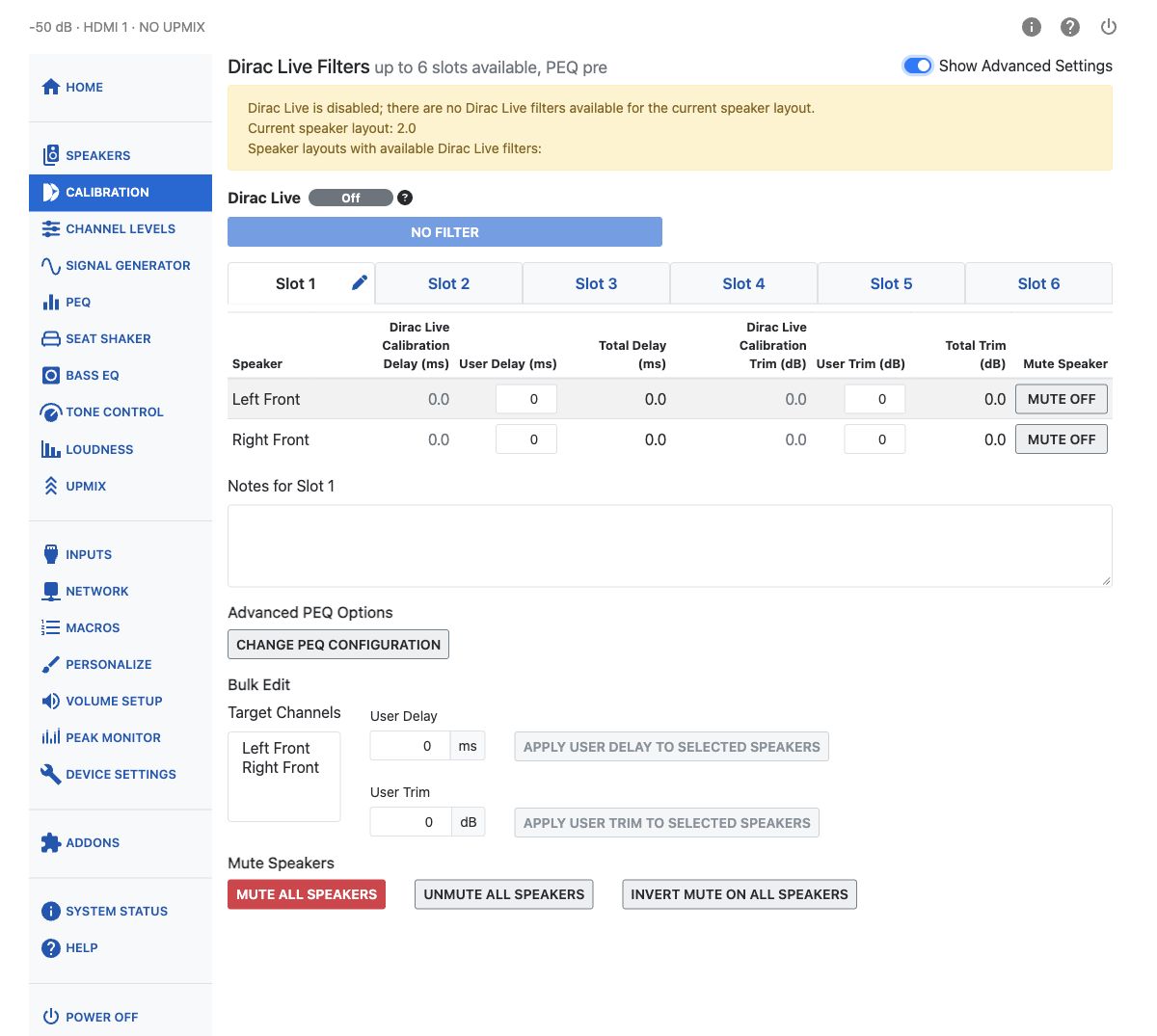
Turn on Show Advanced Settings to reveal the Mute Speaker column, Bulk Edit, and Advanced PEQ Options described below.
Bulk Edit
Bulk Edit applies one delay or trim value to several speakers at once. Select the speakers you want in Target Channels, enter a value, and click Apply User Delay to Selected Speakers or Apply User Trim to Selected Speakers. It respects the same BC/ART lockout as the per-speaker fields.
Mute All / Unmute All / Invert Mute
Three buttons let you manage mutes across every speaker at once: Mute All Speakers, Unmute All Speakers, and Invert Mute on All Speakers (mutes everything that was unmuted and unmutes everything that was muted). Muting a speaker preserves its trim, so unmuting restores the same value.
Advanced PEQ Options
The Change PEQ Configuration button opens the same dialog described in PEQ, for choosing whether PEQ runs pre or post the Dirac Live filter.