Updates and Support
Checking Your Version
Open System Status to see the software version currently installed and whether a newer release is available.
Click Check for updates to refresh the information. If the release server is unreachable, the page explains the problem and may show information from the last successful check.
Version History
Open Version history from System Status. In standby, select View version history and install updates. The page's return link takes you back to System Status or standby, depending on the unit's current power state.
Reading the Release List
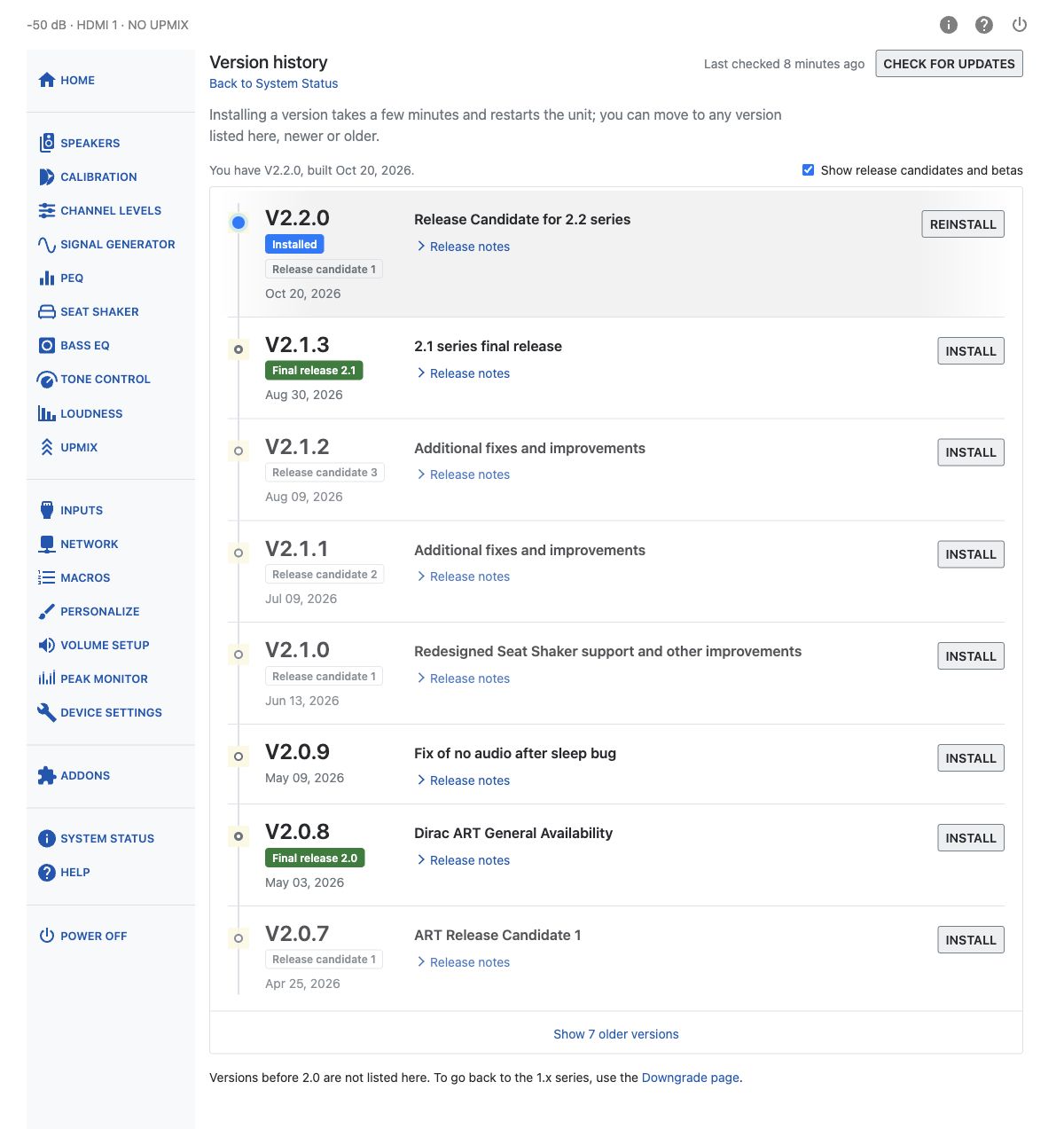
Each entry shows the version, available release date and release stage. Installed identifies the release on your unit; Newer than installed identifies later releases. Expand Release notes beneath an entry to read its changes. If notes are unavailable, the entry says so.
Show release candidates and betas includes nonfinal releases that are still being tested. It is enabled initially. Turning it off hides other nonfinal entries, but your installed release and releases newer than it remain visible. A visible entry is therefore not necessarily a final release; check its release stage before installing.
Select Show … older versions below the list to reveal the remaining entries. Versions before 2.0 are not listed. To return to the 1.x series, follow the Downgrade page link and the version 1.x downgrade precautions; do not use a normal release installation for that migration.
Refreshing and Connection Problems
Select Check for updates to refresh release information. Last checked shows when the information was checked. If the release server is unreachable, the warning reports the failed check and the list comes from the last successful check; newer releases may be missing. Check the HTP-1's internet connection and select Check for updates again.
If software information cannot be loaded, select Try again. If no releases are found, check the unit's internet connection and refresh the list.
Installing an Update
- Read the selected release's Release notes and check its release stage.
- Select Install for a listed newer or older release, or Reinstall for your current release.
- In the confirmation, compare Installed now with Will install. Select Cancel to leave the current version unchanged, or Install followed by the version number to proceed.
- Wait for installation and the automatic restart to finish. Confirm the installed version on System Status when the interface reconnects.
Returning to an older release
Settings saved by newer software may not carry over to older software. Export your configuration before changing versions and review the selected release's requirements. Returning to version 1.x requires the separate downgrade procedure described above.
Tip
Export your configuration before updating. See Backup and Restore. Configuration exports do not include Dirac Live filter files.
What to Expect
During installation, the web interface displays progress messages and a progress bar. Installation may take several minutes. Audio and HDMI pass-through stop while the unit restarts. Do not disconnect power while the update is running.
The HTP-1 restarts automatically when installation finishes. Open browser tabs reconnect and reload when the unit becomes available again.
During startup, you may see HTP-1 is starting or Preparing Dirac Live filters.
The first startup after updating may take longer because the HTP-1 checks its stored Dirac Live filters and prepares missing filter versions.
Your existing settings and calibrations are preserved during a normal firmware update.
Upgrading from Version 1.x
Moving from version 1.x to version 2 replaces the Dirac Live filter system. Existing version 1.x filters cannot be used by version 2; you will need to run a new Dirac Live calibration.
This is a one-time migration. If your HTP-1 already runs version 2.x, use the normal update procedure above.
Before starting, export your configuration and keep your Dirac Live project files separately. A configuration JSON export does not include the Dirac Live filters.
Prepare and Install
-
While still running version 1.x, use its software-update controls to install version 1.13.3. This release includes fixes for the upgrade process and speaker-layout preservation.
-
After the update finishes, open the Info / Detailed Status page and follow the ART Preparation link. If you previously declined the upgrade, use Prepare for ART Upgrade.
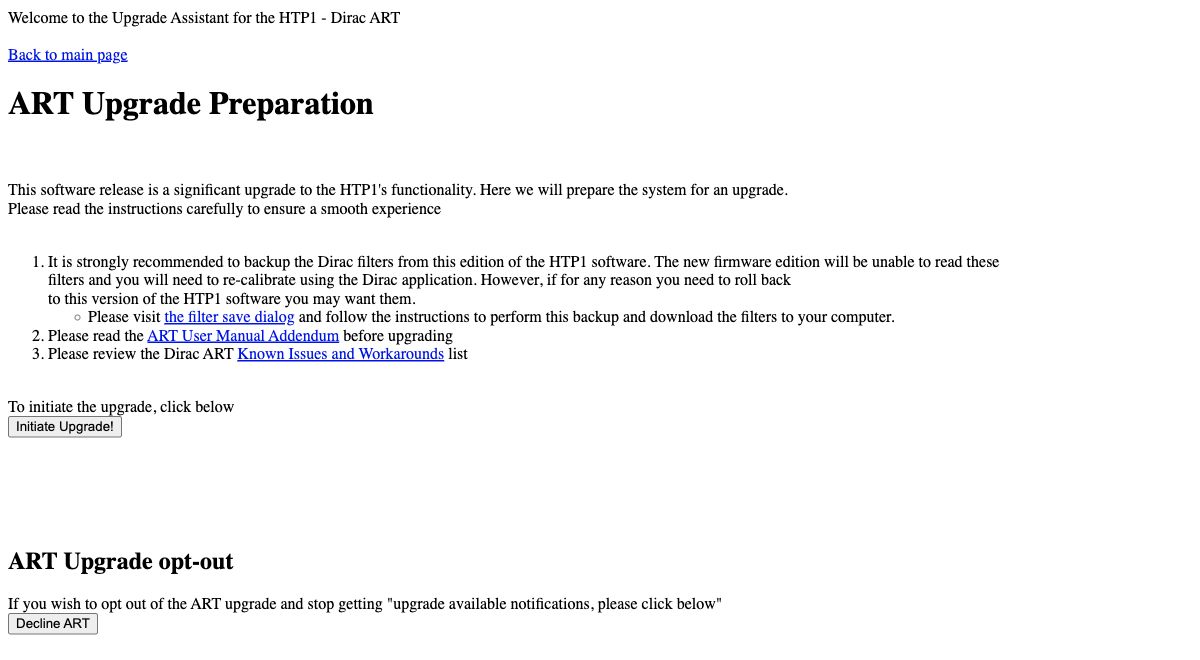
Legacy version 1.13.3 — ART Upgrade Preparation for upgrading from version 1.x.
-
Before initiating the upgrade, follow the preparation page's link to the filter-save dialog. Click prepare for download, wait for preparation to finish, then save the files for your occupied filter slots to your computer. Audio is interrupted during preparation. These files are useful only if you return to version 1.x; they cannot be imported into version 2.
-
Return to ART Upgrade Preparation, read the information provided, and click Initiate Upgrade!
-
Allow the installation and automatic restarts to finish. Do not disconnect power during the upgrade.
-
Once version 2 is running, check the installed version on System Status. Use Version history to install a newer public release if needed, following the normal update procedure above.
Your First Calibration Afterward
Check that the Speakers page shows your intended speaker layout before starting Dirac Live. Correct the layout if necessary and wait for any configuration operation to finish.
Run a new Dirac Live calibration and transfer the resulting filters to the HTP-1. The filters used under version 1.x are not available for playback under version 2.
Review your Volume Setup and Calibration settings after migration. The upgrade resets calibration-related configuration, so do not assume that every previous value has carried over.
If Dirac Live reports a problem, follow the status message and recovery action on the Calibration page. See Dirac Live.
Returning to version 1.x
Returning to version 1.x requires the dedicated downgrade procedure rather than a normal version-history installation. It removes the version 2 filters and attempts to restore the pre-upgrade filters. Restoration is not guaranteed. Keep your downloaded version 1.x filter backups and Dirac Live project files separately.
Support
Downloading Logs
Open Device Settings → Danger Zone and click Download Logs. This downloads a diagnostic ZIP archive containing logs and the current configuration. Its filename includes the unit's serial number and the download date and time. Review the archive before sharing it publicly.
Send this file along when you report a problem — it gives the development team the detail needed to reproduce and diagnose it.
Community Discussion
Much of the HTP-1 owners' discussion about setup, troubleshooting, features, and software updates takes place in the AVS Forum HTP-1 owners thread. You can also find this link under Discussion on the System Status page.
On-Device Help
Click the ? icon to open Help for the current page in a side panel without leaving your settings.
To browse all available Help topics, select Help in the settings sidebar. The online User Manual provides more detailed explanations.